Project Overview
This document is for researchers and developers who need to evaluate, use, or extend EAI Simulator. It describes the platform scope, repository structure, entity catalog, control interfaces, and primary workflows.
Platform Introduction
EAI Simulator is a social physical simulation platform for research into human-machine coexistence and collaboration.
Built on Isaac Lab, the platform provides configurable physical simulation and heterogeneous control interfaces. The environment layer composes humans, robots, manipulators, and sensors. The algorithm and demo layers can further define roles, information flows, task constraints, multi-agent discussions, and collaboration rules. Social capabilities are therefore composable environment and experiment capabilities rather than a standalone rule engine enabled by default in every JSON environment.
The physical simulation layer is built on Isaac Lab and supports reinforcement learning, conventional control, and external policies.
The current catalog covers legged, humanoid, and aerial robots, mobile bases, combined mobile-manipulator platforms, and human assets.
The repository focuses on simulation execution, inference environments, pretrained policy loading, ROS2 interfaces, and reusable experiment entry points.
Architecture
Repository Structure
eai-simulator/
├── simulator.py                         # Unified Isaac Sim and JSON environment entry point
├── demo/fire_rescue/                    # Fire Rescue experiment and port 8767 monitor
├── algorithm/
│   ├── TeamWeaver/                      # LLM + MIQP task decomposition and allocation
│   ├── emos/                            # Multi-robot LLM discussion and task assignment
│   ├── global_planner/                  # 2D planning, path tracking, and velocity commands
│   ├── keyboard/                        # ROS2 cmd_vel keyboard publisher
│   ├── multi_robot_navigation/          # db-CBS multi-robot navigation
│   └── nav2/                            # External ROS2 / Nav2 integration
├── source/
│   ├── EAI/EAI/                         # Controllers, environments, and ROS interfaces
│   ├── EAI_assets/EAI_assets/           # Asset configurations and resolver
│   ├── EAI_env_diy/                     # 3D Env DIY extension
│   └── EAI_hmrs/EAI_hmrs/               # JSON builder and saved environments
├── docs/source/                         # Sphinx documentation sources
├── tools/                               # Setup, validation, ROS2, and asset tools
└── usd/                                 # Tracked manifests, checksums, and UI images
Core Modules
EAI (Core Module)
Location: source/EAI/EAI/
Purpose: Provides the controller system, environment base classes, and common components.
Main components:
controllers/: Controller base classes and loadersbase.py: TheControllerCfgbase class and its unified interfaceskrl_controller.py: Base class for SKRL reinforcement-learning controllersrsl_controller.py: Base class for RSL-RL ONNX controllersdifferential_drive_controller.py: Base class for differential-drive controllersutils.py: Utilities such asONNXPolicyand model loading
hmrs_env/: Multi-robot environment base classesmulti_robot_direct_env.py:MultiRobotDirectEnv, built on DirectMARL
EAI_assets (Assets and Controllers)
Location: source/EAI_assets/EAI_assets/
Purpose: Manages robot assets, scenes, sensors, and controller configurations.
Main components:
robots/: Robot asset configurations, including USD paths and physical parametersscene/: Scene configurations, including terrain, lighting, and obstaclessensor/: Sensor configurationshigh_sensor/: High-frequency sensors with CPU streams, such as Orsuslow_sensor/: Low-frequency GPU streams for reinforcement learning
controller/: Controller configurationstraditional/: Conventional controllers such as differential driverl/: Reinforcement-learning controllers using SKRL or RSL-RL
EAI_hmrs (Inference Environments)
Location: source/EAI_hmrs/EAI_hmrs/
Purpose: Stores JSON environment configurations and builds inference environments with the generic builder.
Characteristics:
Based on
MultiRobotDirectEnvand the DirectMARL architectureUses one
controllersdictionary for controller managementDoes not enable domain randomization by default
Removes reward functions
Environment list: See the Environment Guide.
Controllers and Robots Available to simulator.py
simulator.py only uses JSON environments. With --env=<name>, it loads source/EAI_hmrs/EAI_hmrs/envs/<name>.json. Without --env, it opens the Env DIY startup menu. Select item 3 or run python simulator.py --diy-3d for true 3D editing; this saves Viewport transforms as physical spawn_pose values.
Robot choices are defined by source/EAI/EAI/hmrs_env/env_diy/catalog.py::ROBOT_KEYS and source/EAI_hmrs/EAI_hmrs/env_builder.py::ROBOT_OPTIONS. The following 13 types are currently available:
Env DIY key |
Robot / object |
Default controller |
Optional payloads |
|---|---|---|---|
|
Carter differential base |
|
Orsus, RealSense D455, LiDAR, Z1 |
|
Pepper holonomic base |
|
RealSense D455 |
|
Unitree Go2 |
|
Orsus, RealSense D455, LiDAR, UR5, Z1 |
|
Unitree B2 |
|
Orsus, RealSense D455, LiDAR, UR5, Z1 |
|
DeepRobotics M20 |
|
Orsus, RealSense D455, LiDAR, UR5, Z1 |
|
Scout mobile base |
|
Orsus, RealSense D455, LiDAR, UR5, Z1 |
|
Unitree G1 |
|
- |
|
Crazyflie CF2X |
|
Built-in camera and LiDAR, keyboard, Navigation I/O |
|
Pegasus 3DR Iris |
|
Built-in camera and LiDAR, keyboard, Navigation I/O |
|
Pegasus research quadrotor |
|
Built-in camera and LiDAR, keyboard, Navigation I/O |
|
DeepRobotics Lite3 |
|
Orsus, RealSense D455, LiDAR, UR5, Z1 |
|
MuSHR Nano v2 Ackermann base |
|
RealSense D455, LiDAR, keyboard, Navigation I/O |
|
Coco AIRS Ackermann base |
|
Orsus, RealSense D455, LiDAR, keyboard, Navigation I/O |
Controller configurations are stored in
source/EAI_assets/EAI_assets/controller/, underrl/andtraditional/.UR5_IK_CFGandZ1_IK_CFGprovide manipulator attachments for the compatible hosts listed above.
Environments and Tasks
All environment configurations live in
source/EAI_hmrs/EAI_hmrs/envs/; this directory contains JSON files only.robo.jsonis a comprehensive quick-start environment with multiple robots and keyboard control.EAI-Factory-v0.jsoncontains the fixed robot composition used by Fire Rescue.Environments saved by Env DIY use the same schema and launch process as manually maintained environments.
Launch an environment with
python simulator.py --env=<env_name>, omitting the.jsonextension.
Workflow
Create a custom environment with Env DIY - Start
simulator.pywithout--envto enter the custom environment flow:python simulator.py --num_envs=1 --device=cuda:0
The prompt offers three environment-authoring methods:
1. Visual window: Use the Env DIY window to selectScenes -> Robots -> Payloads -> Tools. Payloads are grouped into Manipulators (UR5/Z1) and Sensors (Orsus/RealSense D455/LiDAR), while Tools provides Camera, Keyboard, and Navigation I/O. The Camera Tool independently controls ROS image publication for the built-in monocular cameras on Iris, Pegasus, and CF2X, plus Orsus and RealSense D455 cameras on compatible hosts. MuSHR has no built-in camera; it produces images only when RealSense D455 is explicitly attached. Navigation I/O controls LiDAR, IMU, GPS, magnetometer, and barometer publication for all three aerial robots, Orsus LiDAR point-cloud and odometry publication, and RealSense D455 IMU publication. Orsus/<robot>/scanis generated by the external Nav2 conversion pipeline rather than directly by the simulator. Navigation I/O is serialized with thenavigation_iokey. The result can be saved assource/EAI_hmrs/EAI_hmrs/envs/<env_name>.json.2. Terminal quick setup: Select a scene, host robot, manipulator, sensor, tool, and controller in the same order as the visual window, then choose whether to save and run the environment immediately.3. Isaac Sim 3D editor: Edit the robots’ physicalspawn_posevalues directly in the Isaac Sim Viewport. You can also runpython simulator.py --diy-3d --device=cuda:0to enter it directly.
Request Hugging Face asset access before the first run - Large USD assets and RL model weights are not stored directly in Git. They are provided through the gated Hugging Face dataset rosolab/eai-simulator-assets. Submit an access request on that page. After your account is approved, sign in from the terminal:
hf auth login
At startup,
simulator.pychecks for missing assets underusd/and missing model files undersource/EAI_assets/EAI_assets/controller/rl/. Once authorized, it downloads only the missing files as needed. The--diy-3dextension also displays individual status entries for scenes, robots, payloads, tools, and controller configurations. It supports per-itemDownloadactions andDownload all and runwhen launching. Access to the gated dataset is handled throughRequest, terminalLogin, andRecheck; the extension never accepts a token. SetEAI_ASSETS_HF_REPOto use another compatible dataset repository, or setEAI_ASSETS_AUTO_DOWNLOAD=0to disable automatic downloads.Launch a JSON environment - Start with the comprehensive example. Saved custom environments use the same loading process:
python simulator.py --env robo
python simulator.py --env=<env_name> --num_envs=1 --device=cuda:0
python simulator.py --env=nav2 --num_envs=1 --device=cuda:0
Launch the fixed Fire Rescue composition - The environment name is unchanged, but the implementation loads JSON:
python simulator.py --env=EAI-Factory-v0 --num_envs=1 --device=cuda:0
Policy sources -
source/EAI_assets/EAI_assets/controller/rl/stores the pretrained-policy loading configurations and weight paths required by the simulator.
Env DIY and External Interface Examples
Env DIY is the custom environment entry point in simulator.py. It quickly composes scenes, robots, sensors, and external control tools.
The following demo shows the complete flow from environment configuration to simulation. Watch the full workflow first, then work through it in the embedded tutorial.
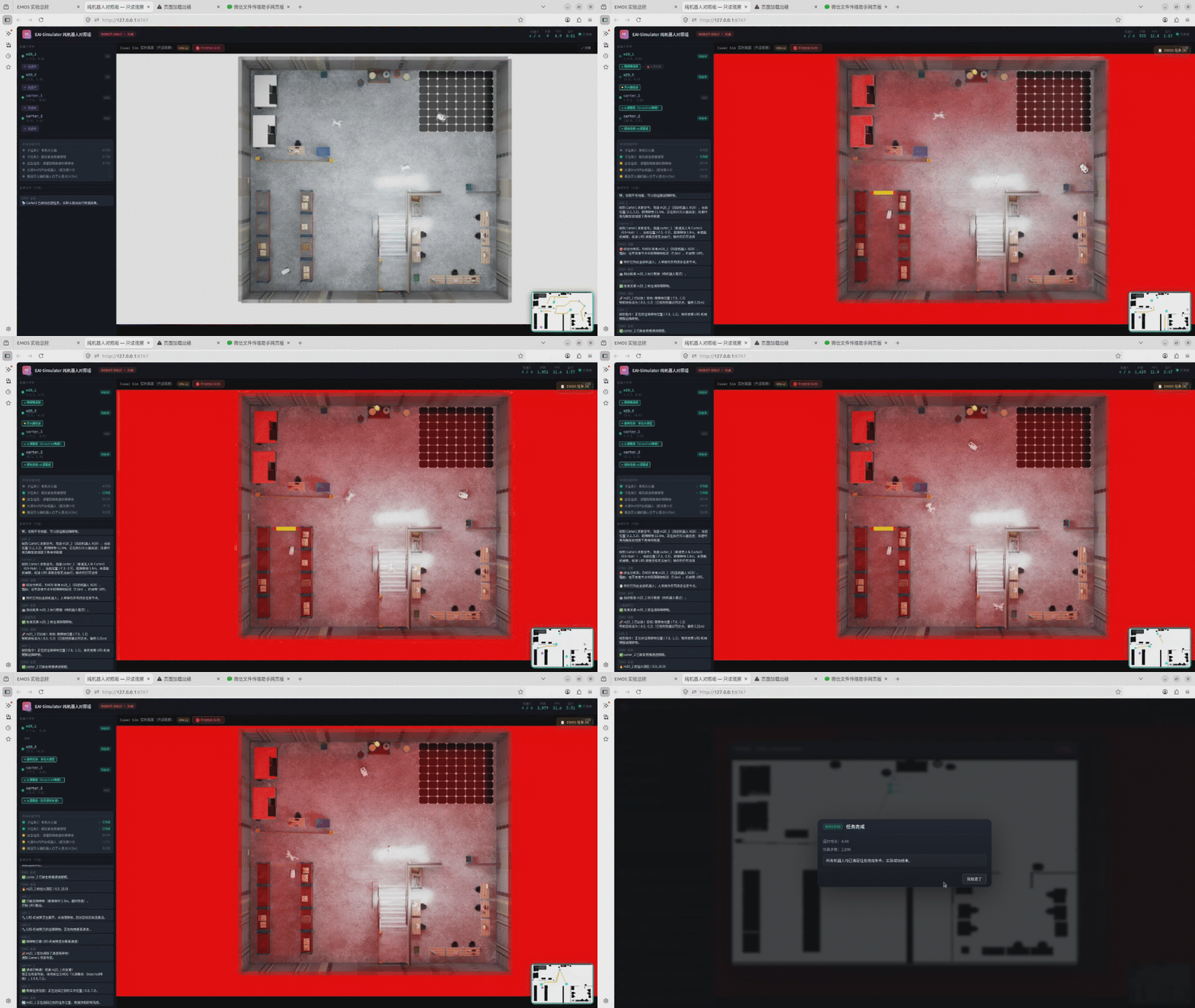
EAI Simulator scene, robot, and task execution
Env DIY Tutorial
Visual workflow:
Start the simulator without
--env:python simulator.py --num_envs=1 --device=cuda:0
Select
1. Visual windowin the prompt.Drag a scene card onto the canvas, then drag robot cards to their target positions in the scene.
Open
Payloads. Choose UR5/Z1 underManipulatorsor Orsus/LiDAR underSensors, then openToolsto choose Camera, Keyboard, or Navigation I/O. The Camera Tool independently controls ROS image publication for the built-in monocular cameras on Iris, Pegasus, and CF2X, plus Orsus and RealSense D455 cameras on compatible hosts. MuSHR has no built-in camera and requires an explicitly attached RealSense D455 for image output. Navigation I/O controls LiDAR, IMU, GPS, magnetometer, and barometer publication for all three aerial robots, Orsus LiDAR point-cloud and odometry publication, and RealSense D455 IMU publication. Orsus scan is generated only when the external Nav2 conversion pipeline runs. For an aerial robot, the disabled Orsus, RealSense D455, and LiDAR cards explain the equivalent built-in camera or LiDAR capability. Other cards are disabled when the payload cannot be mounted, is already attached, or would add a second manipulator.Select
Complete Selectionand save the environment if needed. Saved configurations are written tosource/EAI_hmrs/EAI_hmrs/envs/<env_name>.json.Launch a saved environment directly on subsequent runs:
python simulator.py --env=<env_name> --num_envs=1 --device=cuda:0
The visual.x/y values in the lightweight window describe canvas layout, not simulation coordinates. For height, surface snapping, and true 3D transforms, use the Isaac Sim pre-run 3D editor described in the environment guide:
python simulator.py --diy-3d --device=cuda:0
See the Environment Guide for the 3D entry point, asset downloads, and the execution boundary within a single Kit process.
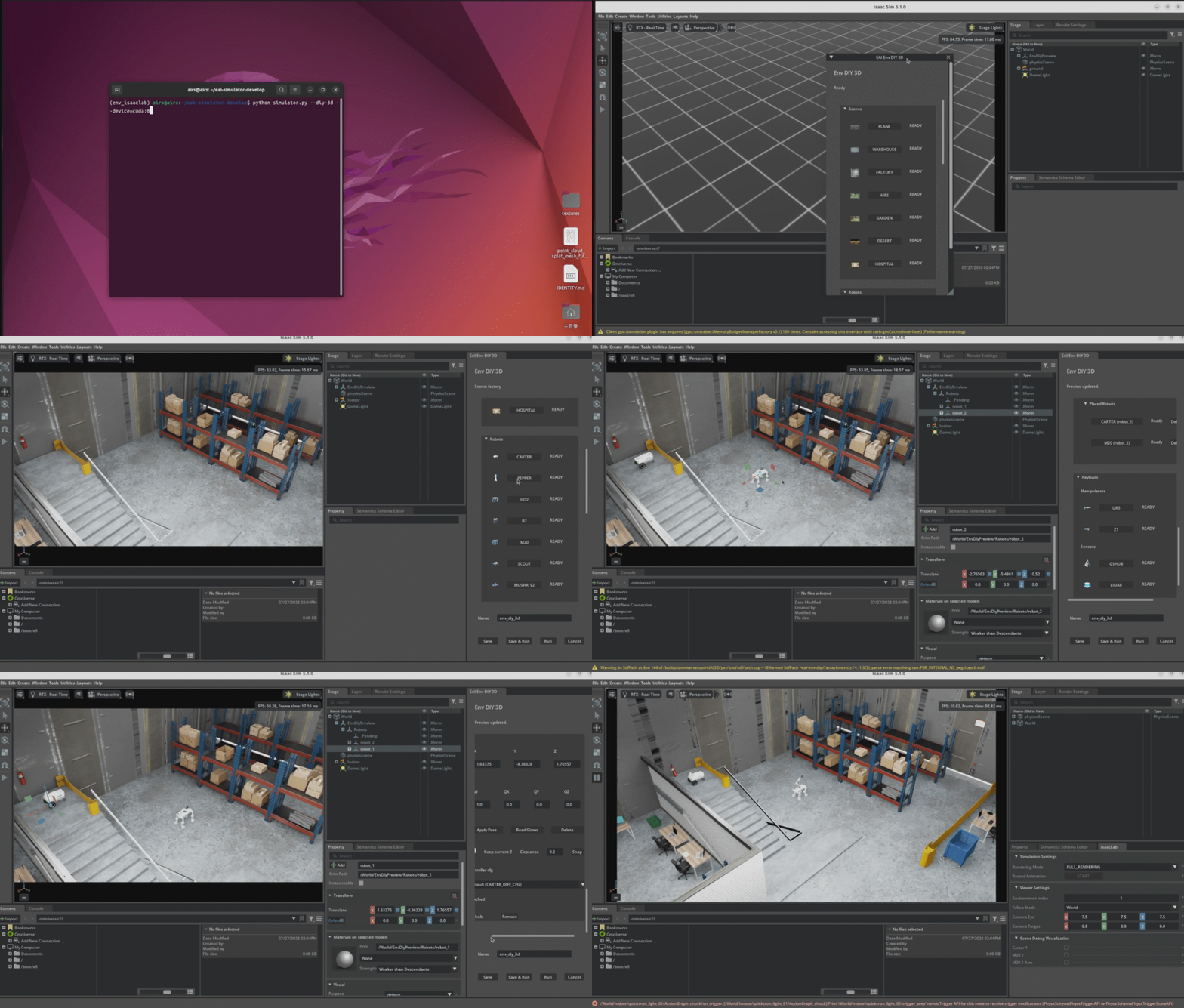
EAI Env DIY 3D scene editing, asset preparation, and execution workflow
Quick terminal workflow:
Run
python simulator.py --num_envs=1 --device=cuda:0.Select
2. Terminal quick setupin the prompt.Select a scene, host robot, UR5/Z1 manipulator, Orsus/LiDAR sensor, Camera/Keyboard/Navigation I/O tool, and controller in sequence. Camera and Navigation I/O have the same publication responsibilities as in the visual workflow.
Follow the prompts to choose whether to save and immediately run the environment.
Keyboard external interface example:
The repository includes source/EAI_hmrs/EAI_hmrs/envs/keyboard.json as the minimal keyboard test environment:
python simulator.py --env=keyboard --device=cuda:0
This environment creates carter_1 and subscribes to /carter_1/cmd_vel. After the simulator starts, run the following in another terminal:
source /opt/ros/humble/setup.bash && python3 algorithm/keyboard/keyboard.py
algorithm/keyboard/keyboard.py automatically discovers /<robot>/cmd_vel topics. You can also specify a robot explicitly:
source /opt/ros/humble/setup.bash && python3 algorithm/keyboard/keyboard.py --robot carter_1
Controls: W/S/A/D translate, R/F makes aerial robots ascend/descend, C/V turns, K or Space stops, Q switches between robots, and Esc or Ctrl-C exits. Set aerial vertical speed with --vertical-speed. This script uses ROS Humble’s rclpy; the system python3 is recommended.
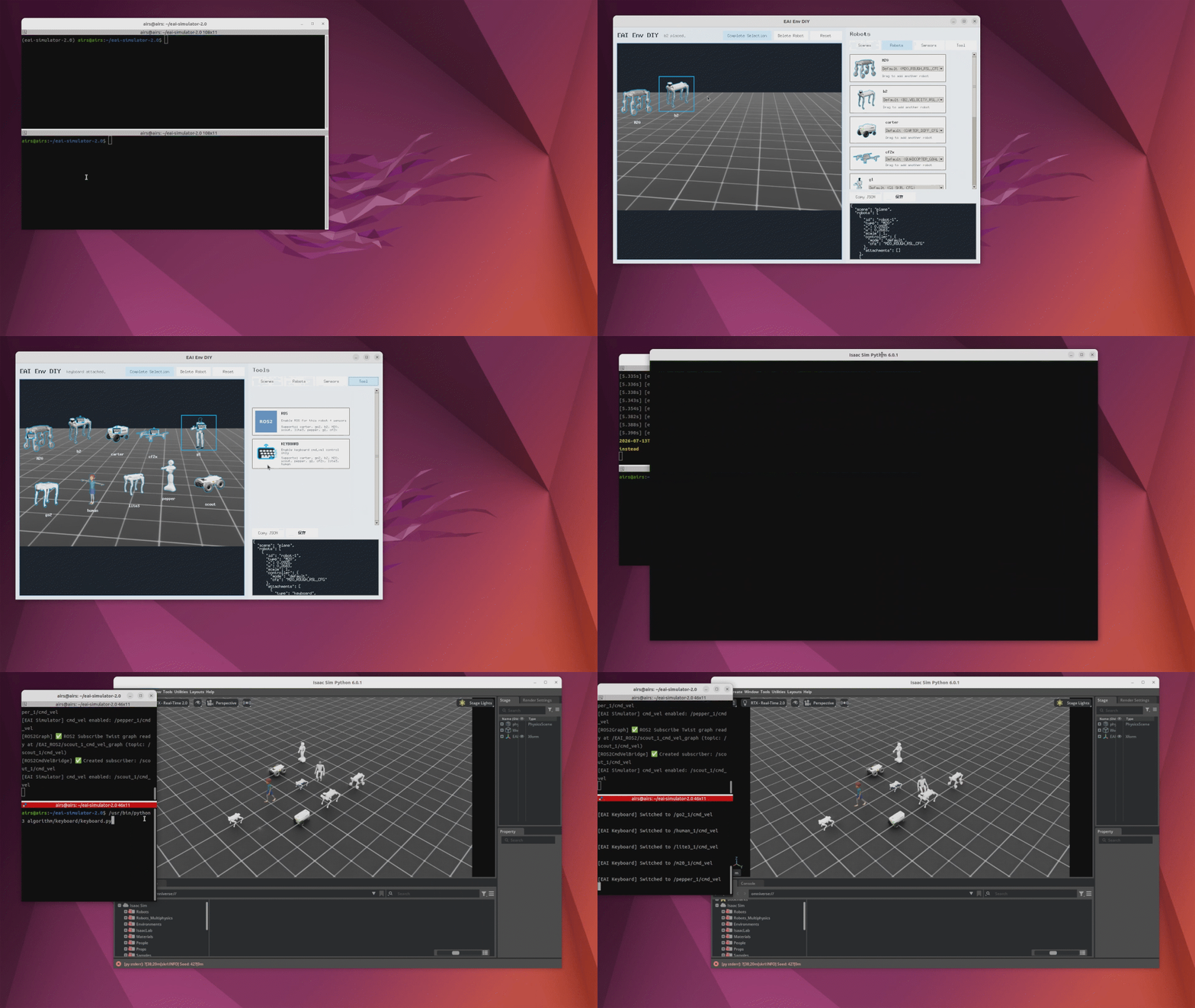
The Keyboard tool controls a robot through ROS2 cmd_vel
Nav2 navigation example (Factory + Carter + Orsus):
The included Nav2 example is source/EAI_hmrs/EAI_hmrs/envs/nav2.json. It selects the Factory scene and Carter, then adds Orsus, Camera, and Navigation I/O. The Camera Tool enables Orsus image publication. Navigation I/O enables the /carter_1/cmd_vel subscriber and Orsus LiDAR point-cloud and odometry publication. The external tf_bridge.py and pointcloud_to_laserscan processes under algorithm/nav2/ then generate /carter_1/scan. If the registered Factory map is missing, Nav2 uses system ROS Python to call the shared simulator.py assets ensure interface and downloads only the provider-declared map pair. An absolute map:= remains authoritative and bypasses that request.
In terminal 1, launch the simulator. Nav2 and Orsus simulations require the Isaac Sim GUI and cannot run headless:
conda activate env_isaaclab
python simulator.py --env=nav2 --num_envs=1 --device=cuda:0
In terminal 2, launch Nav2 and RViz:
source /opt/ros/humble/setup.bash
export RMW_IMPLEMENTATION=rmw_cyclonedds_cpp
ros2 launch algorithm/nav2/nav2.launch.py robot_name:=carter_1 robot_type:=Carter scene:=factory rviz:=true
In terminal 3, send a navigation goal. Choose a point in the free space of the Factory map:
source /opt/ros/humble/setup.bash
export RMW_IMPLEMENTATION=rmw_cyclonedds_cpp
/usr/bin/python3 algorithm/nav2/send_goal.py --x -5.0 --y -8.0
After the map, sensors, and ROS channels are configured, Nav2 plans and executes a path through the Factory scene. The following demo appears after the complete command sequence so that its result can be compared directly with the terminal steps.
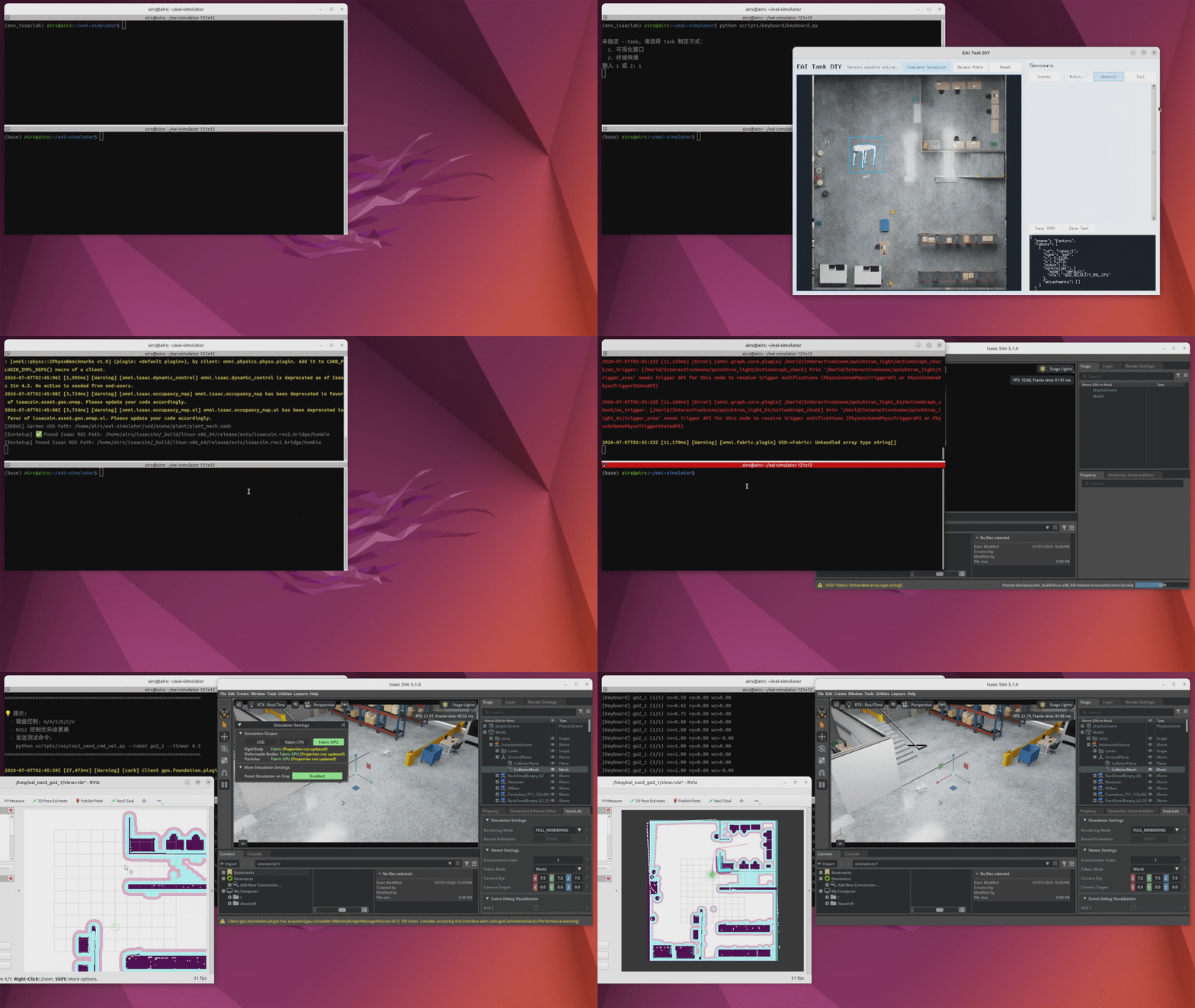
Nav2 navigation with Factory, Carter, and Orsus
Installation and Common Commands
Editable installation, with the Isaac Lab Python environment available:
python -m pip install 'pywebview[qt]'
python -m pip install --no-deps -e source/EAI
python -m pip install --no-deps -e source/EAI_assets
python -m pip install --no-deps -e source/EAI_hmrs
List JSON environment configurations:
find source/EAI_hmrs/EAI_hmrs/envs -maxdepth 1 -name '*.json' -printf '%f\n' | sort
Install or uninstall all packages from the repository root:
./tools/setup/install_packages.sh       # Install
./tools/setup/install_packages.sh -u    # Uninstall
./tools/setup/install_packages.sh -v    # Verbose output
Update Env DIY image assets from the repository root:
PYTHONPATH=source/EAI python -m EAI.hmrs_env.env_diy.update_assets
PYTHONPATH=source/EAI python -m EAI.hmrs_env.env_diy.update_assets --source-root usd/picture --output-root usd/picture/processed
EAI.hmrs_env.env_diy.update_assetschecks source PNG files underusd/picture/robot/,usd/picture/manipulator/,usd/picture/sensor/, andusd/picture/tool/. When the matching output is missing fromusd/picture/processed/, or the source is newer than the processed file, it regenerates the Env DIY palette asset with a transparent background, outline, and glow. It does not update Git code or download scene, robot, or RL model assets.
Development Conventions and Notes
Keys in the
controllersdictionary must match scene asset names. Dictionary order determines the observation and action concatenation order.All controllers are handled through the environment’s
_pre_physics_stepinterface; the Dispatcher does not need to be called manually.Pretrained-policy loading configurations and conventional controllers live in
source/EAI_assets/EAI_assets/controller/.See the Controller Development Guide for controller development.
usd/maintains manifests, checksums, and UI images only. The asset resolver installs production USD and RL model assets on demand from release revisionv0.1.0-beta.1into the active asset roots. Access to the gated Hugging Face asset repository must be requested first.Build the documentation with
cd docs && make html. Preview it locally withcd build/html && python -m http.server 8000.
Current Repository Scope
The repository focuses on simulation execution, asset configuration, controller loading, Env DIY, and external ROS/Nav2 interfaces.