Orsus Sensor
Orsus is an integrated stereo-camera, RTX LiDAR, and odometry sensor module for ROS2 navigation stack integration.
Orsus can be mounted to Carter, Go2, B2, M20, Scout, Coco, and Lite3. Use tools/ros2/vis_sensors.py to view the stereo images and point-cloud top view together. Camera exclusively controls the image graphs, while Navigation I/O exclusively controls point-cloud and odometry publishing. Environment JSON uses the internal keys camera and navigation_io, respectively.
Scenes containing Orsus currently support one environment only and must be launched with --num_envs 1.
Function Overview
The Orsus sensor provides the following features:
Left/Right Camera Image: Release
/<robot>/Orsus_L_camand/<robot>/Orsus_R_cam(sensor_msgs/Image)Point Cloud Output: Publish
/<robot>/cloudtopic (sensor_msgs/PointCloud2)Odometry: Publish the
/<robot>/odometrytopic (nav_msgs/Odometry)ROS2 integration: Automatically configure the ROS2 environment and set the topic namespace according to the robot instance name
Architecture
Orsus keeps the embedded publisher graphs for its stereo cameras. LiDAR and odometry resources are created per robot instance at runtime:
Carter / another compatible robot
    └── Orsus
        ├── Embedded left/right camera graphs
        │   └── /<robot>/Orsus_L_cam, /<robot>/Orsus_R_cam
        ├── Runtime RTX LiDAR + Replicator writer
        │   └── /<robot>/cloud
        └── Runtime instance-safe odometry graph
            └── /<robot>/odometry
    ↓ ROS2 topics
ROS2 Navigation2 navigation stack
Used in the environment
1. Add Orsus to the scene configuration
Add Orsus in the scene class of the environment configuration file:
from EAI_assets.sensor.high_sensor import OrsusCfg

@configclass
class YourSceneCfg(InteractiveSceneCfg):
    # ...other assets ...

    orsus = OrsusCfg(
        # Attach the Orsus to the robot's chassis link
        prim_path="{ENV_REGEX_NS}/Carter/Carter/Orsus_chassis_link/Orsus",
        # External parameter calibration data (relative to chassis link)
        init_state=AssetBaseCfg.InitialStateCfg(
            pos=(0.026, 0, 0.418), # (x, y, z) meters
        ),
        enable_camera_publish=True,
        enable_ros_publish=True,
    )
Notice:
prim_pathmust point to a subpath of the robot chassis linkThe position needs to be calibrated based on the actual robot model
2. Runtime resource assembly
When Orsus loads, it creates a cached runtime USD copy without the legacy non-instance-safe LiDAR and odometry graph. After the environment resets, it creates the RTX LiDAR point-cloud writer and connects a new odometry graph to the host chassis:
def spawn_and_fix_orsus(prim_path, cfg, translation, orientation):
    runtime_cfg = cfg.copy()
    runtime_cfg.usd_path = _orsus_runtime_asset_path(cfg.usd_path)
    sim_utils.spawn_from_usd(prim_path, runtime_cfg, translation, orientation)
    # Register RTX LiDAR and odometry creation requests per instance.

def setup_pending_orsus_ros_graphs():
    # Create the RTX LiDAR writer and instance-safe odometry graph after reset.
    ...
The runtime cache defaults to ~/.cache/eai-simulator/runtime-assets and can be overridden with EAI_RUNTIME_ASSET_CACHE. Session shutdown removes the writer, render product, LiDAR prim, and odometry graph.
ROS2 environment configuration
Orsus will automatically configure the ROS2 environment:
def configure_ros_env():
    # 1. Set ROS2 version
    os.environ["ROS_DISTRO"] = "humble"
    os.environ["RMW_IMPLEMENTATION"] = "rmw_fastrtps_cpp"

    # 2. Find the Isaac ROS Bridge path
    isaac_ros_path = find_isaac_ros_bridge_path()

    # 3. Set environment variables
    os.environ["ISAAC_ROS_PATH"] = isaac_ros_path
    os.environ["LD_LIBRARY_PATH"] = ...
    os.environ["AMENT_PREFIX_PATH"] = ...
Prerequisites:
Isaac Sim ROS2 Bridge installed
ROS2 Humble environment
Published Topics
Orsus will set the ROS namespace based on the robot instance name. For example the carter_1 bot will publish /carter_1/Orsus_L_cam, /carter_1/Orsus_R_cam, /carter_1/odometry and /carter_1/cloud.
/<robot>/Orsus_L_cam and /<robot>/Orsus_R_cam (sensor_msgs/Image)
The left and right cameras provide binocular images of the Orsus respectively. The topic namespace is consistent with the robot instance name generated by Env DIY. For example, the first Carter usually uses:
/carter_1/Orsus_L_cam
/carter_1/Orsus_R_cam
If the environment contains multiple robots of the same type, please first confirm the actual instance name through ros2 topic list.
/<robot>/cloud (sensor_msgs/PointCloud2)
Frequency: Synchronized with simulated cadence (usually 60 Hz)
content:
3D point cloud data, original frame semantics are given by Orsus USD graph
Before Nav2 use, process the data through
algorithm/nav2/tf_bridge.pyandpointcloud_to_laserscan
/<robot>/scan (sensor_msgs/LaserScan)
/<robot>/scan is not published directly by Orsus; algorithm/nav2/ generates this Nav2 input after processing /<robot>/cloud.
Usage Examples
Example 1: Carter ROS2 sensor environment
Refer to the JSON configuration source/EAI_hmrs/EAI_hmrs/envs/nav2.json.
Operating environment:
python simulator.py \
  --env=nav2 \
  --num_envs=1
Example 2: Checking the ROS2 topic
In another terminal:
# List all topics
ros2 topic list

# Filter Orsus camera and point cloud topics
ros2 topic list | grep -E 'Orsus_[LR]_cam|/cloud$'

# View odometry (using carter_1 as an example)
ros2 topic echo /carter_1/odometry

# View original point cloud
ros2 topic echo /carter_1/cloud

# Check the LaserScan used by Nav2 (after starting algorithm/nav2)
ros2 topic echo /carter_1/scan
Example 3: Visualizing Orsus camera and point cloud
First start the graphical simulation environment with Orsus, Camera, and Navigation I/O in a terminal. The built-in nav2 environment uses Factory + Carter + Orsus:
conda activate env_isaaclab
python simulator.py --env=nav2 --num_envs=1 --device=cuda:0
After waiting for Isaac Sim to finish loading, run the visual script in another terminal. The robot instance in nav2 is named carter_1, so the namespace uses /carter_1:
source /opt/ros/humble/setup.bash
python3 tools/ros2/vis_sensors.py \
  --sensor orsus \
  --namespace /carter_1
The script will subscribe to the following three topics and open three OpenCV windows: Left Camera, Right Camera and Lidar BEV:
/carter_1/Orsus_L_cam
/carter_1/Orsus_R_cam
/carter_1/cloud
Run the visualizer without arguments to show every camera on the current ROS graph, including the Iris, Pegasus, and CF2X monocular cameras and all Orsus left/right cameras. The script continues discovering camera topics that start later:
source /opt/ros/humble/setup.bash
python3 tools/ros2/vis_sensors.py
Other bots simply replace the namespace. For example, check out the Orsus of the first Go2:
source /opt/ros/humble/setup.bash
python3 tools/ros2/vis_sensors.py --sensor orsus --namespace /go2_1
For an old Orsus scene without per-robot namespaces, explicit Orsus mode defaults to the /isaac namespace:
source /opt/ros/humble/setup.bash
python3 tools/ros2/vis_sensors.py --sensor orsus
Before running, the system Python environment needs to provide rclpy, sensor_msgs, cv_bridge, OpenCV and NumPy. If there is no image in the window, first check whether the corresponding topic exists and continue to publish:
ros2 topic list | grep Orsus
ros2 topic hz /carter_1/Orsus_L_cam
ros2 topic hz /carter_1/Orsus_R_cam
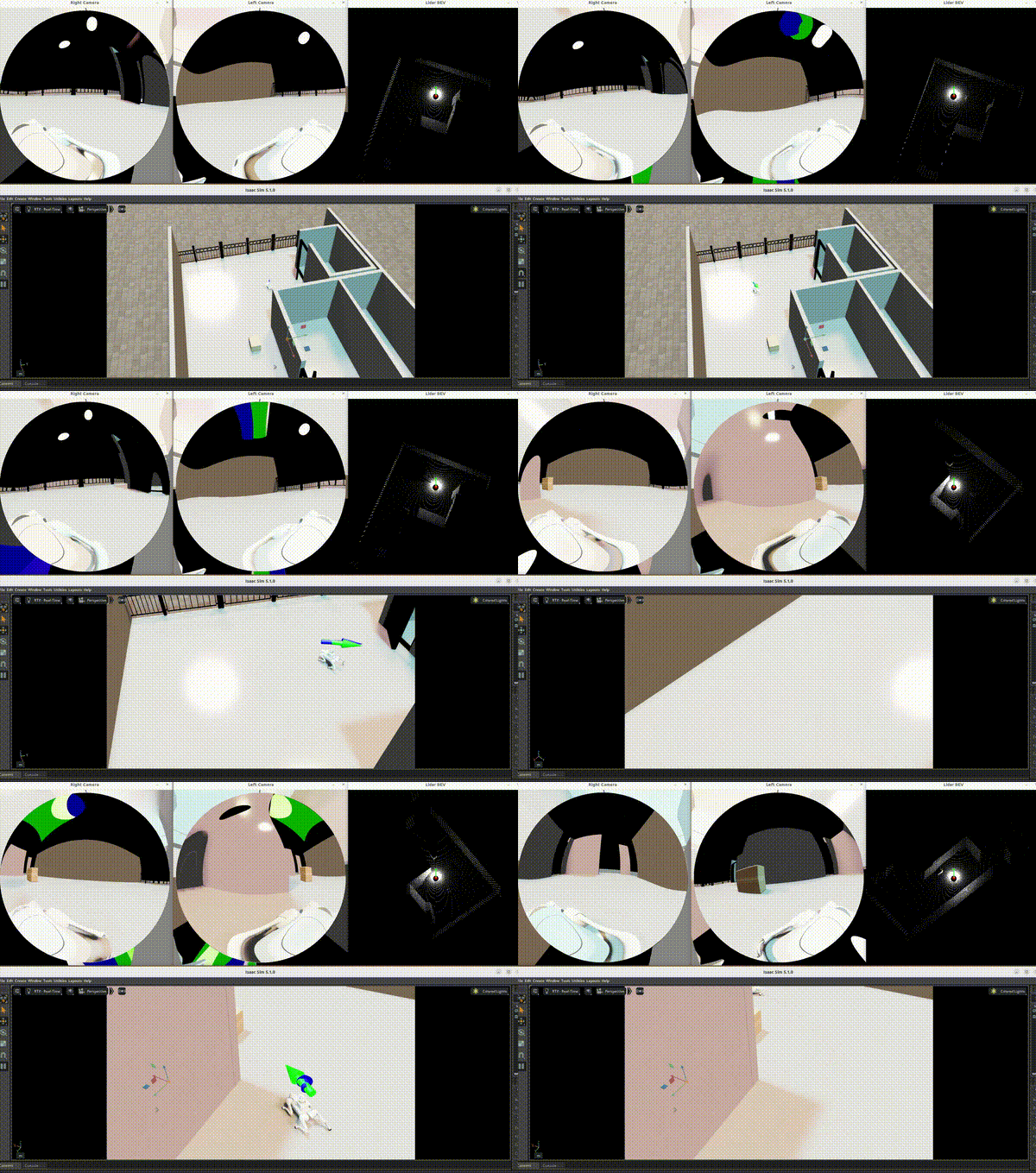
Use vis_sensors.py to view Orsus binocular images and point cloud top views
Workflow
Troubleshooting
Problem 1: ROS2 Topic Is Not Published
examine:
Confirm that Isaac ROS Bridge is installed
Check the ROS2 environment variable:
echo $ROS_DISTROView the
[EnvSetup]message in the simulation log
solve:
# Manually set up ROS2 environment (if needed)
source /opt/ros/humble/setup.bash
export ROS_DISTRO=humble
Problem 2: Graph connection failed
CHECK: Check the simulation log for [Orsus] messages
Solution: Confirm that prim_path correctly points to the robot chassis link
Problem 3: Abnormal sensor data
examine:
LiDAR range settings
Is the robot position correct?
Resolution: Check sensor configuration in USD file
Extension
Add other sensors
You can add other sensors by referring to the implementation of Orsus:
Create USD file (including Graph)
Create a Python configuration class (inherits
AssetBaseCfg)Implement the
spawnfunction (load USD, configure connection)
Custom topic name
Modify the Graph configuration in the USD file and change the topic name.
References
Implementation file:
source/EAI_assets/EAI_assets/sensor/high_sensor/orsus.pyUSD asset: provider path
payloads/sensors/orsus/Orsus_fix_type.usdEnvironment configuration example:
source/EAI_hmrs/EAI_hmrs/envs/nav2.jsonDynamic mounting implementation:
source/EAI_hmrs/EAI_hmrs/env_builder.pyROS2 Navigation2: https://navigation.ros.org/