RealSense D455
The RealSense D455 is a sensor module integrating an RGB color camera, a depth camera, and a 6-axis IMU. It mounts onto robots as a decoupled payload and is compatible with Pepper, MuSHR v2, Carter, Go2, B2, M20, Scout, Coco, and Lite3.
This page walks through the complete workflow of mounting, running, visualizing, and reading data from the sensor. Commands in the tutorial use the robot instance mushr_v2_1 as an example.
1. Mounting the RealSense D455
Once mounted, the sensor provides four topics:
Topic |
Type |
Content |
Gate |
|---|---|---|---|
|
sensor_msgs/Image |
1280x720, rgb8 |
|
|
sensor_msgs/Image |
1280x720, 32FC1, in meters |
|
|
sensor_msgs/CameraInfo |
camera intrinsics |
|
|
sensor_msgs/Imu |
quaternion / angular velocity / linear acceleration (gravity included) |
Navigation I/O |
The image and IMU publisher graphs are independent: the Camera Tool only toggles images, while Navigation I/O only toggles the IMU (the same gating scheme as Orsus). Navigation I/O uses the navigation_io key in JSON.
1.1 Mounting via Env DIY
Select RealSense D455 in the Payloads step of Env DIY (and select Camera and Navigation I/O as needed). The three entry points are:
Terminal wizard:
python simulator.pyWeb editor:
python simulator.py --diy3D editor:
python simulator.py --diy-3d
1.2 Mounting via a JSON environment file
Add the realsense_d455 payload and the internal camera/navigation_io tool keys to a robot in source/EAI_hmrs/EAI_hmrs/envs/<name>.json (see the tracked mushr_realsense.json for an example):
{
  "scene_key": "plane",
  "task_name": "mushr_realsense",
  "robots": [
    {
      "type": "mushr_v2",
      "controller": {"mode": "default", "cfg": "MUSHR_ACKERMANN_CFG"},
      "attachments": [
        {"type": "realsense_d455"},
        {"type": "camera"},
        {"type": "navigation_io"}
      ]
    }
  ]
}
2. Launching the simulation and checking topics
After mounting via Env DIY, run the simulation directly when prompted. If the environment was saved in Env DIY, or when using a tracked environment, launch it by name:
python simulator.py --env=mushr_realsense
In a second terminal, confirm that all four topics are registered:
source /opt/ros/humble/setup.bash
ros2 topic list | grep RealsenseD455
# /mushr_v2_1/RealsenseD455_rgb
# /mushr_v2_1/RealsenseD455_depth
# /mushr_v2_1/RealsenseD455_camera_info
# /mushr_v2_1/RealsenseD455_imu
Topic namespaces follow the robot instance name (the first mushr_v2 instance is mushr_v2_1).
3. Visualizing RGB and depth images
Use the tracked tools/ros2/vis_sensors.py from a system ROS Python environment with a graphical display. It requires rclpy, sensor_msgs, cv_bridge, OpenCV, and NumPy; its tools/ros2/ location does not make those dependencies available in env_isaaclab:
# Auto-discover all Image topics (RGB and depth included)
python3 tools/ros2/vis_sensors.py

# Or explicitly select the RealSense mode and namespace
python3 tools/ros2/vis_sensors.py --sensor realsense --namespace /mushr_v2_1
Two windows open: RealSense RGB and RealSense Depth (grayscale depth). The two images below were captured at the same moment (timestamp-aligned, dt = 0 ms) and show the output with a RealSense D455 mounted on a MuSHR v2 robot in the Factory scene:
RGB image (1280x720, rgb8) |
Depth image (1280x720, 32FC1, in meters) |
|---|---|
|
|
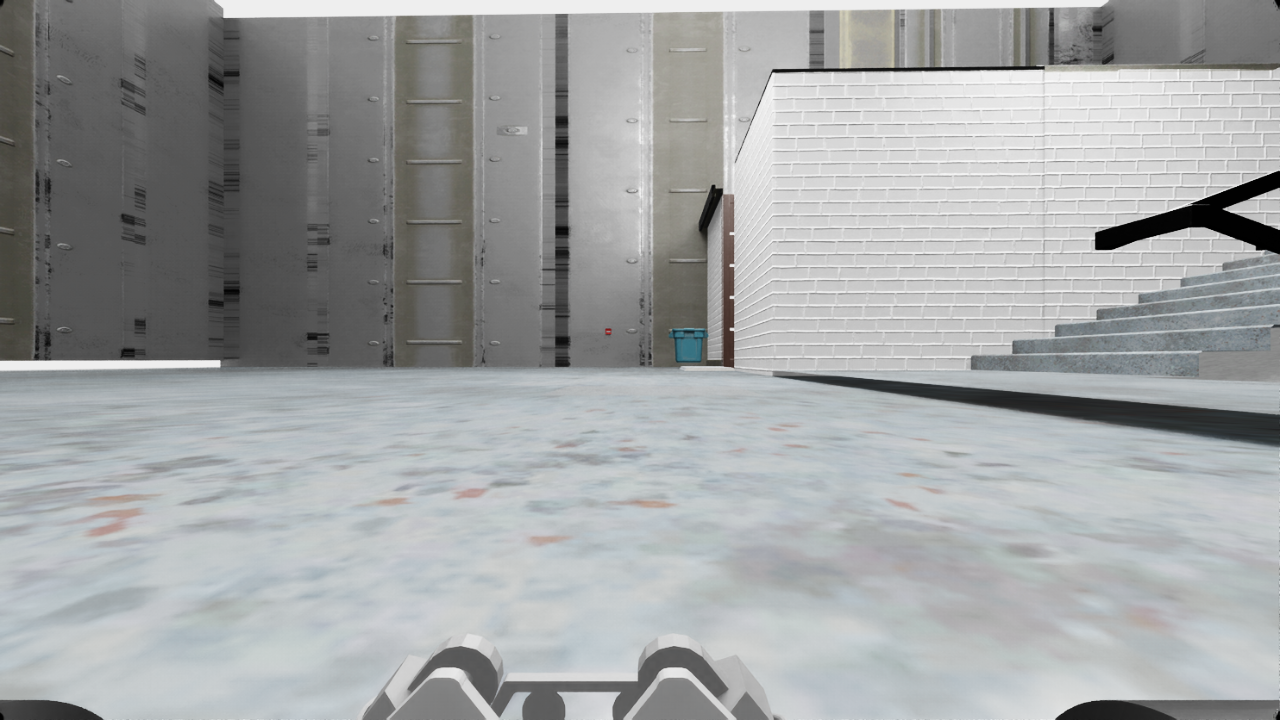
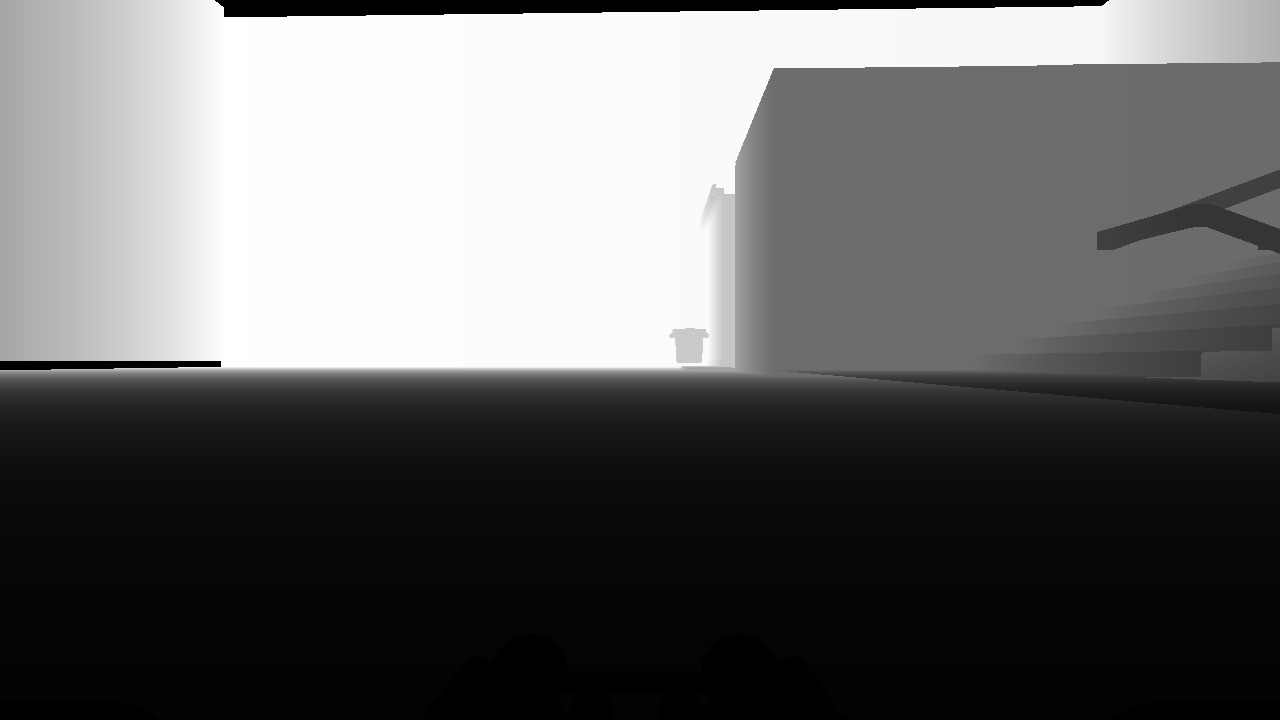
The depth topic is 32FC1 (in meters). Out-of-range or no-return pixels are rendered black (no data) in the depth window; finite distances are mapped to grayscale using the 1st-99th percentiles.
4. Reading the IMU
# Continuously print IMU data
ros2 topic echo /mushr_v2_1/RealsenseD455_imu

# Print a single message
ros2 topic echo --once /mushr_v2_1/RealsenseD455_imu

# Check the publish rate (about 23 Hz in GUI mode)
ros2 topic hz /mushr_v2_1/RealsenseD455_imu
The IMU topic is sensor_msgs/msg/Imu and carries quaternion orientation, angular velocity, and linear acceleration (gravity included); its frame_id is sim_imu.
5. Troubleshooting
Symptom |
Check |
|---|---|
Image topics not published |
Confirm both the |
IMU topic not published |
Confirm Navigation I/O is selected; the log should show |
References
Interface declarations:
source/EAI/EAI/interface_catalog/interfaces/sensors/realsense_d455.yamlImplementation:
source/EAI_assets/EAI_assets/sensor/high_sensor/realsense_d455.py,source/EAI/EAI/hmrs_ros/realsense_d455_imu.py